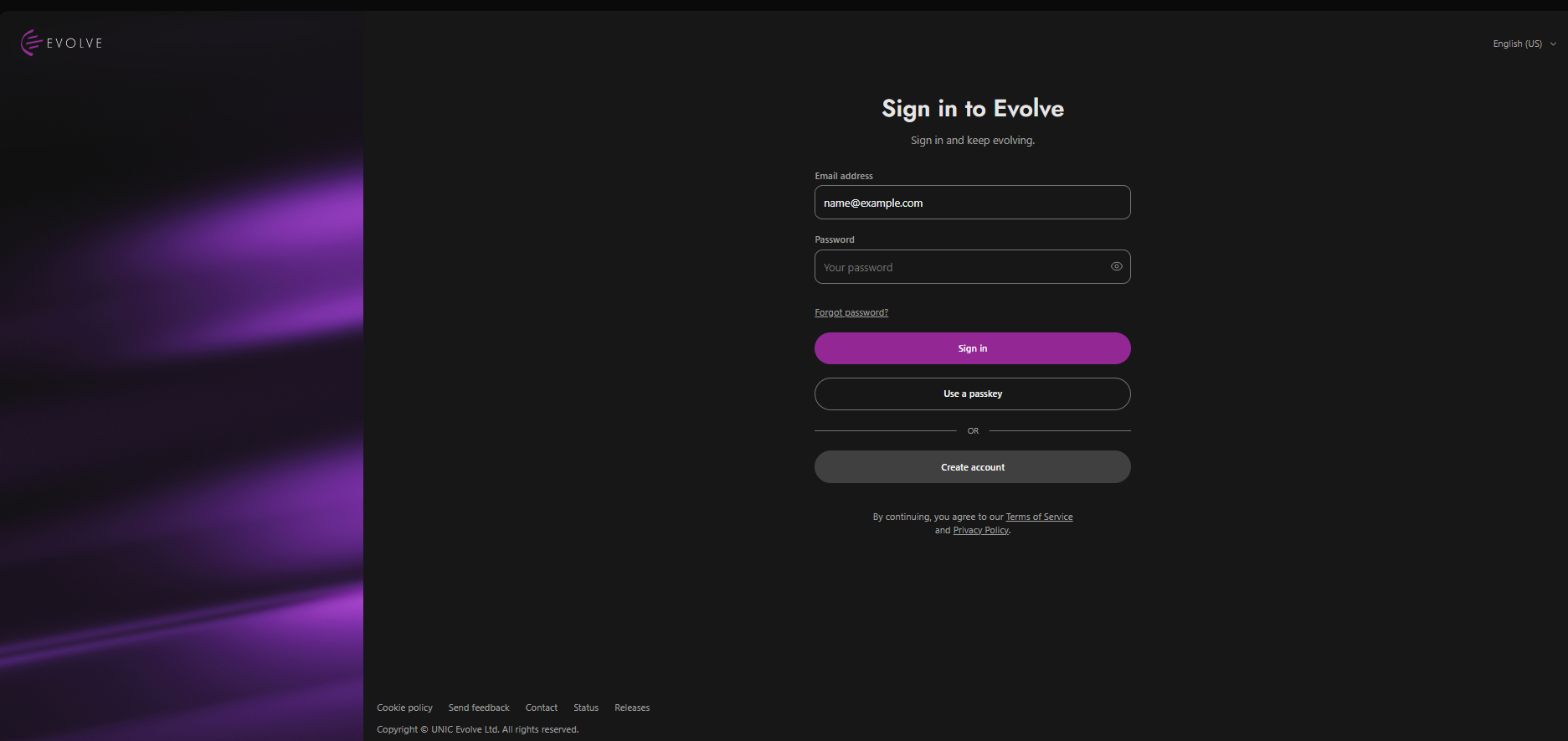
There are two ways a user can log out: Sign out and Settings.
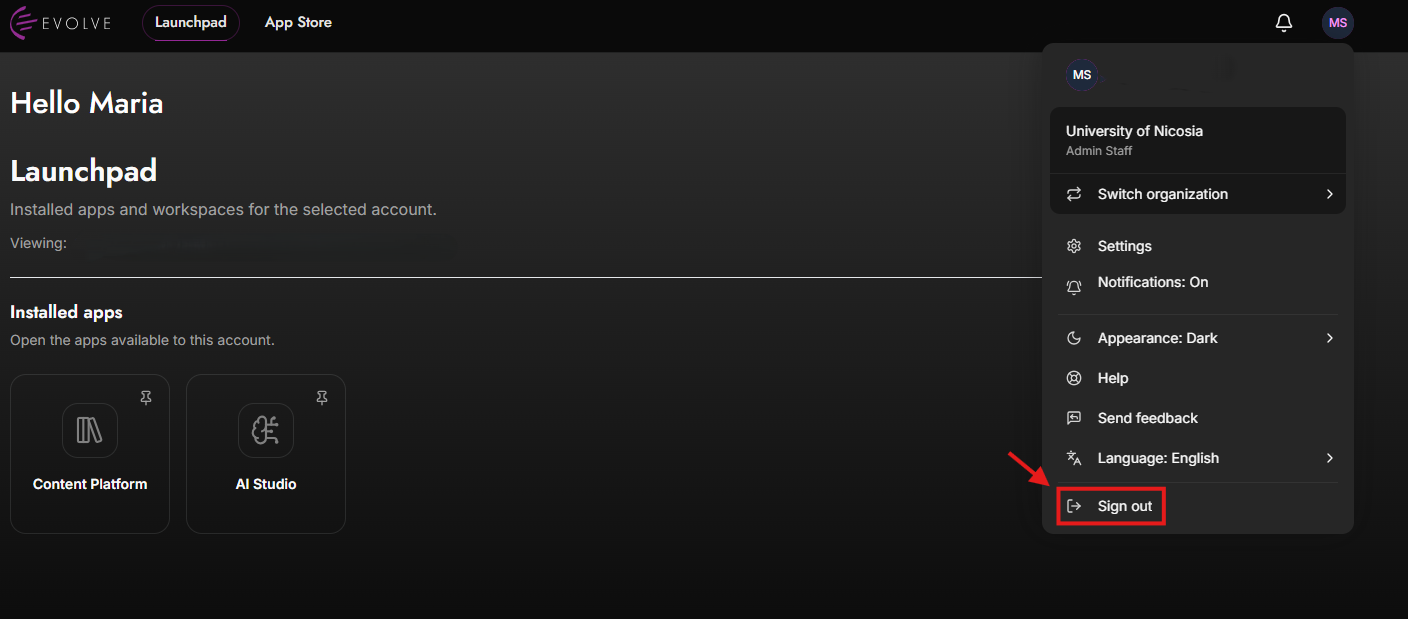
After logging in, locate your profile icon in the upper-right corner of the dashboard. Then, click on the profile icon to open a dropdown menu, as depicted in the image above.
After opening the dropdown menu, find and click on the "Sign out" option.
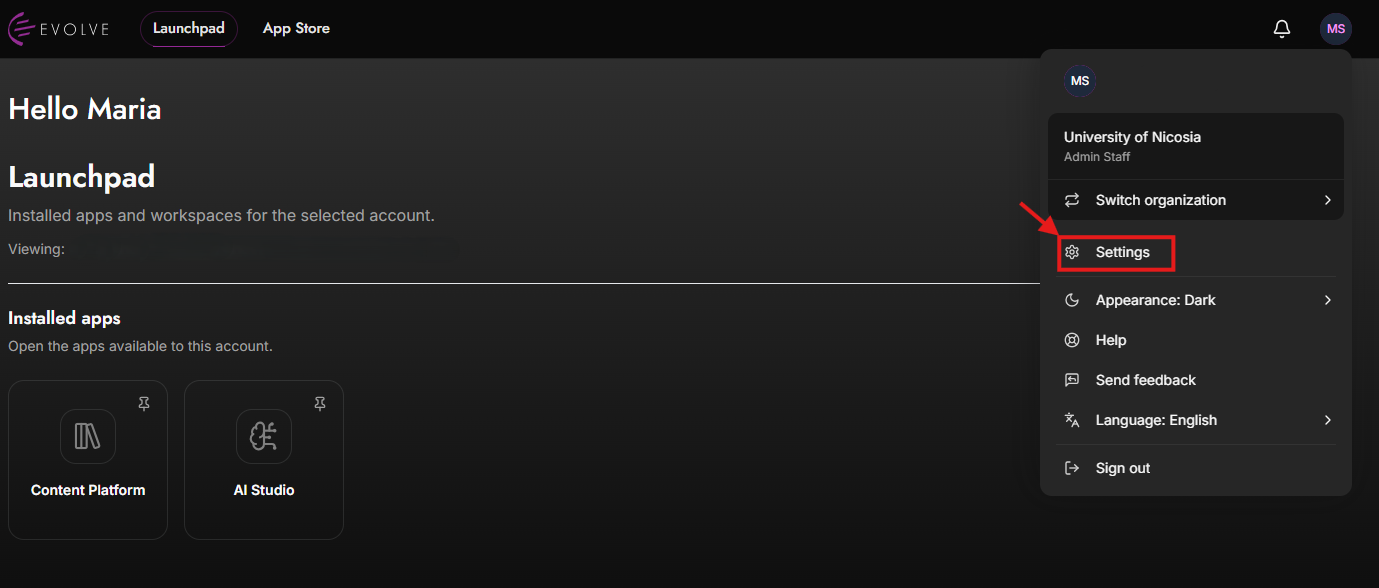
After logging in, locate your profile icon on the upper right corner of the dashboard. Then, click on the profile icon to open a dropdown menu, as depicted in the image above. After opening the dropdown menu, find and click on the "Settings" option.
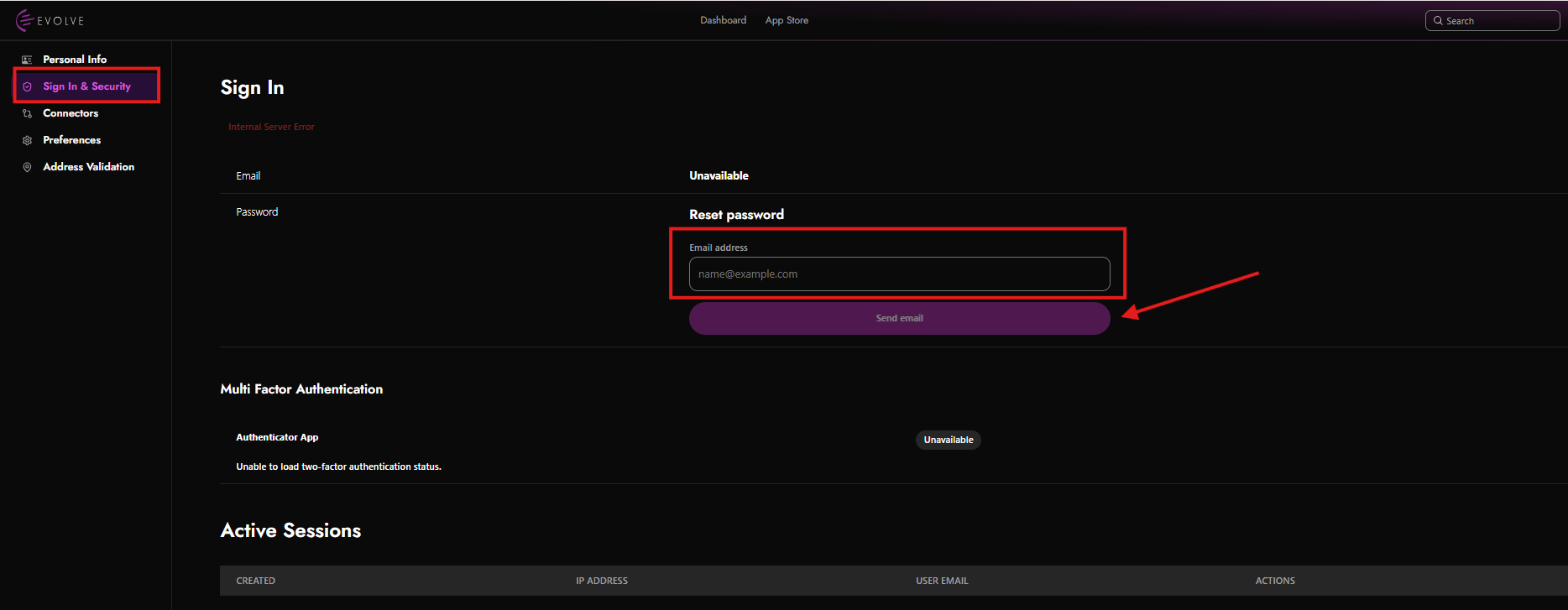
After opening the dropdown menu, find and click on the “Settings”, then select the “Sign In & Security” option. A text input field labeled “Email address” is highlighted with a red box, indicating where the user should type their email (example placeholder: [email protected]). Then click “Send email” with a red arrow to submit the request.
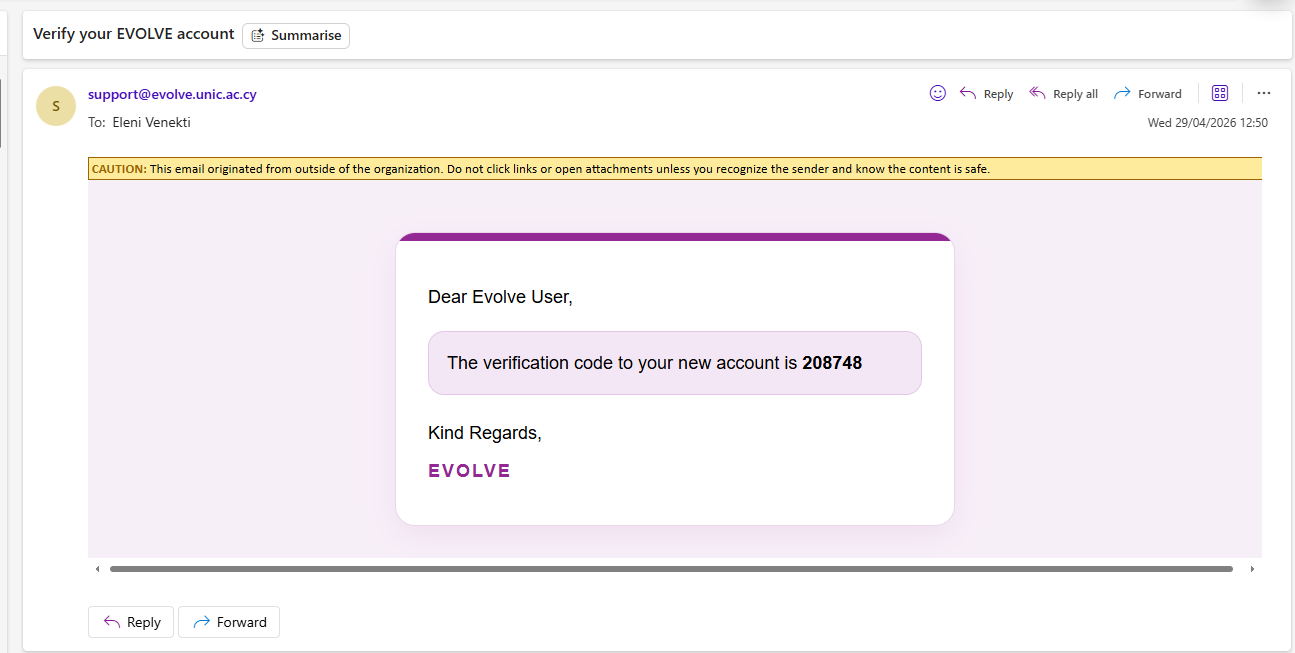
An email will be sent to you with the above text and the Verification code.
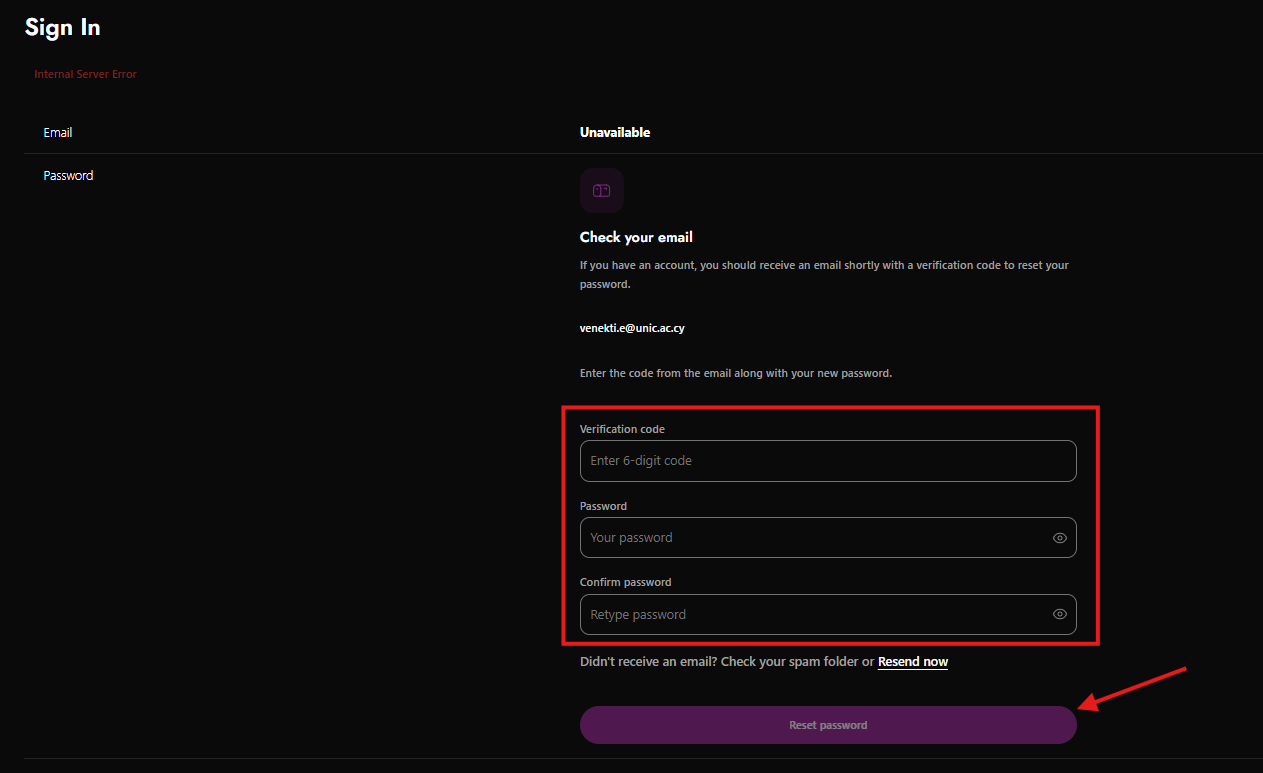
Verification code – a field to enter a 6-digit code received via email
Password – where the user types their new password
Confirm password – to re-enter the password for confirmation

At the bottom, there is a button labeled “Reset password”, indicating the final step to submit the new password.