Please begin by following this Link, which will direct you to the sign-in page for Evolve.
If you're unsure how to log in, follow this guide here.
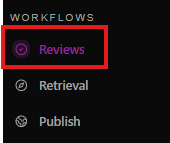
Go to the left navigation menu.
Find the Workflows section.
Click Reviews.

At the top, you can search for content by:
File name
Folder name
Owner
Tag
Use this when you need to locate a specific item or review-related asset quickly.

The filter chips near the top right help narrow the review list:
Filter | Purpose |
All | Shows all reviews |
Yours | Shows reviews assigned to you |
Connected | Shows reviews connected to your work or shared items |
Needs review | Shows items waiting for review |
Recently added | Shows newly added review items |
Each filter currently shows 0, meaning there are no matching reviews.

Below the page title, the screen says: Showing 0 reviews
It also indicates the view is for: Open and changes-requested reviews
This means the page is focused on active review items, especially those that are still open or require changes.

Use Refresh to reload the review list.
This is useful if:
Someone recently assigned you a review
A review status has changed
You uploaded or updated content
The page has been open for a while
The Open guide button in the top-right corner likely opens built-in help or documentation for this workspace.
Use it if you need more detailed instructions inside the platform.
Open the Reviews page.
Check whether any reviews appear in the list.
Use the filters to focus on reviews relevant to you.
Use search if you are looking for a specific file, folder, owner, or tag.
Click Refresh if you expect new review activity but do not see it.
If no reviews appear, there is currently nothing requiring your attention.