Reviewed on 2026-09-05.
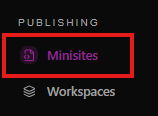
In the left sidebar, go to the Publishing section.
Select Minisites.
Your archive files will appear in the main view.
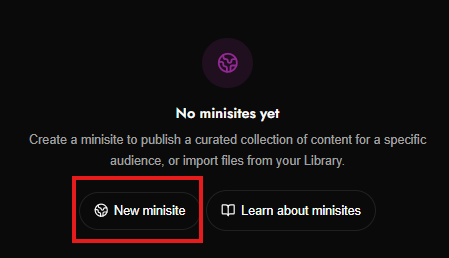
Click New minisite.
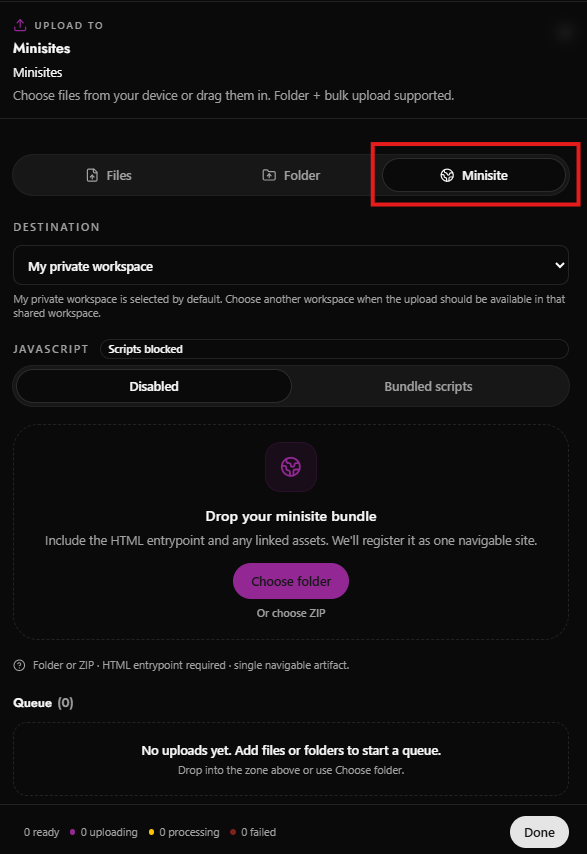
Minisite is already selected.
Under Destination, select where the minisite should be uploaded.
Current selection: My private managed folder
This is selected by default. If the minisite should be available in a shared managed folder, open the dropdown and choose the correct managed folder before uploading.
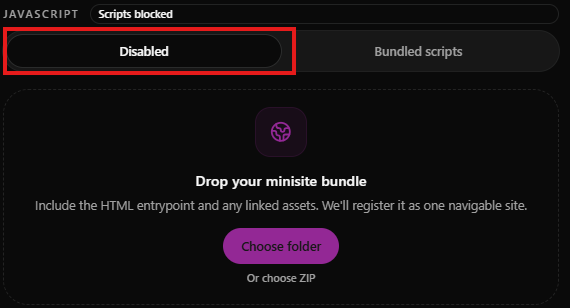
Under JavaScript, select how scripts should be handled.
Current status: Scripts blocked
Disabled | JavaScript will be blocked or disabled |
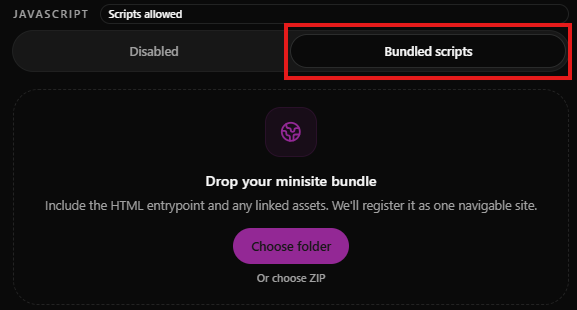
Bundled scripts | Allows scripts that are bundled with the minisite package, if permitted by the managed folder settings |
You can upload the minisite in either of these ways:
Click Choose folder.
Select the folder that contains the minisite bundle.
Make sure the folder includes the HTML entrypoint, such as index.html.
Confirm the selection.
Click or choose ZIP.
Select the ZIP file from your device.
Make sure the ZIP contains the HTML entrypoint and linked assets.
Drag your minisite folder or ZIP into the large upload area labeled:
Drop your minisite bundle
After selecting a folder or ZIP, the upload queue will appear under Queue.
Current status: Queue (0)
No uploads yet. Add files or folders to start a queue.
Once you add a bundle, you should see upload progress.

At the bottom, the status bar shows:
Ready
Uploading
Processing
Failed
If an upload fails, review the queue message and confirm that the minisite includes a valid HTML entrypoint.
When the upload completes successfully:
Confirm the item shows as ready or processed.
Click Done.
Return to the Minisites page to find the uploaded minisite.
Your minisite bundle must include an HTML entrypoint. Usually this is:
index.html
If the bundle does not include an HTML entrypoint, Evolve may not be able to register it as a navigable minisite.
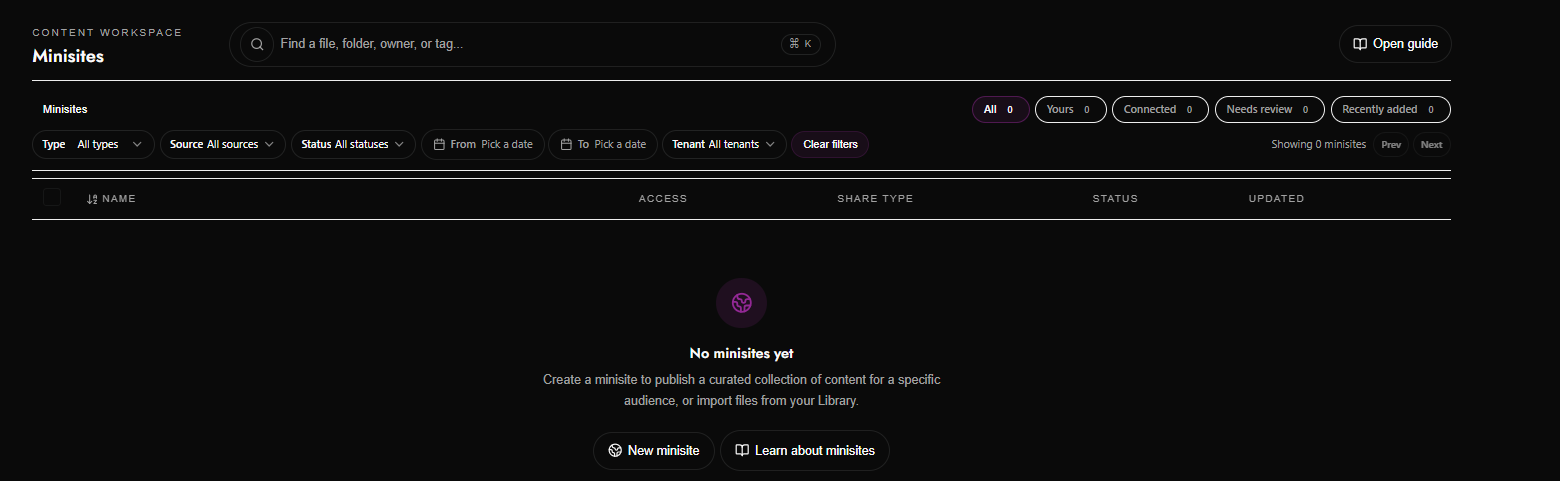
Use the search bar at the top: Find a file, folder, owner, or tag...
You can search by:
File name
Folder name
Owner
Tag

Use the filter row near the top of the page.
Available filters include:
Type: filter by file type
Source: filter by where the file came from
Status: filter by review status
From: choose a start date
To: choose an end date
Account: filter by account
Clear filters: remove all active filters

At the top right, you can switch between upload views:
View | Meaning |
All | Shows all uploads |
Yours | Shows files uploaded by you |
Connected | Shows connected items |
Needs review | Shows items requiring review |
Recently added | Shows newly added files |

At the upper right of the table, you can see: Showing 1-25 of 51
Use:
Prev: go to the previous page
Next: go to the next page
If you need the platform’s built-in help, click Open guide in the top-right corner of the page.
How to open a file: please use this guide here.