To open a file:
Find the file in the Library table.
Select the file name.
The file opens in the platform viewer or the appropriate content page.
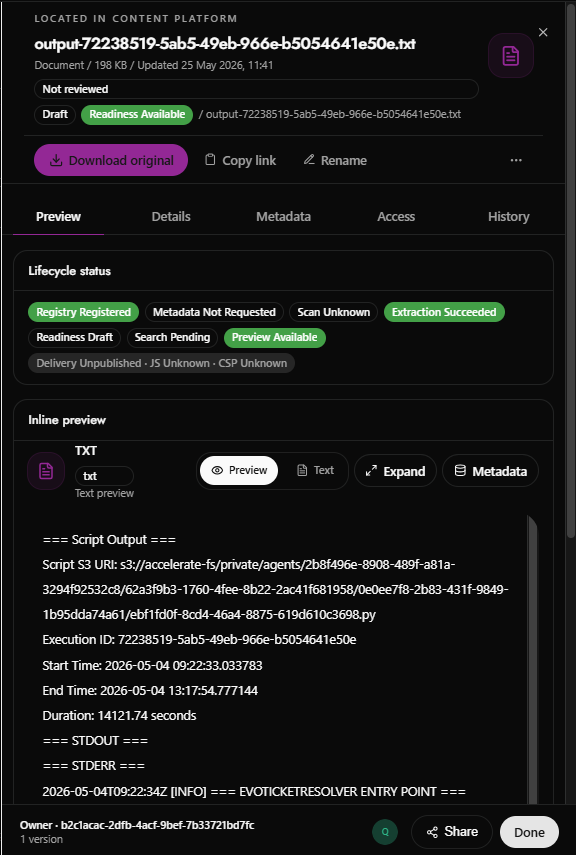

The file name is: output-72238519-5ab5-49eb-966e-b5054641e50e.txt
File information shown below the title:
Type: Document
Size: 198 KB
Updated: 25 May 2026, 11:41
A close X appears in the top-right corner, and a purple document icon appears near the upper-right area.

Additional labels show:
Draft
Readiness Available
File path: /output-72238519-5ab5-49eb-966e-b5054641e50e.txt
Below the file header, there are several action buttons:
Download original
Copy link
Rename
More options, shown as a three-dot menu:
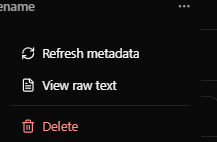
Refresh metadata | Reprocess or update the file’s metadata |
View raw text | Open the extracted or plain-text version of the file |
Delete | Remove the file from the platform |
The Lifecycle status panel displays several status chips:
Registry Registered
Metadata Not Requested
Scan Unknown
Extraction Succeeded
Readiness Draft
Search Pending
Preview Available
Delivery Unpublished
JS Unknown
CSP Unknown
The Inline preview section shows the document type as TXT with the file extension txt.
Available preview controls include:
Preview, currently selected
Text
Expand
Metadata
The preview area displays text output from a script, including:
A script output heading
A script S3 URI
An execution ID
Start and end times
Duration
STDOUT and STDERR sections
Log output beginning with an INFO entry
At the bottom, the page shows the owner ID:
b2c1acac-2dfb-4acf-9bef-7b33721bd7fc
It also shows: 1 version
Bottom-right action buttons include:
Share
Done
If there are more results than can fit on one page, use the pagination controls in the top-right area of the table.
Controls include:
Prev
Next
The page also shows the current range of results, such as:
Showing 1-3 of 3
If you need help while using the Library, select Open guide in the upper-right corner of the page.
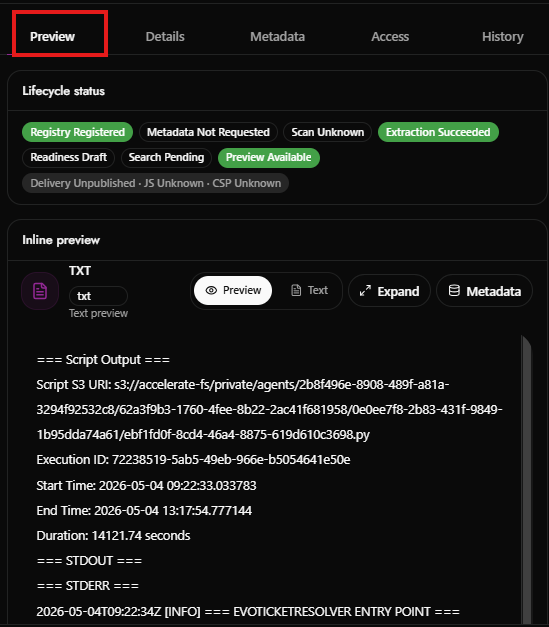
The Preview tab is selected at the top of the page.
Below the tabs, the Lifecycle status panel summarizes the file’s processing and publication state. It displays several status indicators:
Status Area | Current State |
Registry | Registered |
Metadata | Not Requested |
Scan | Unknown |
Extraction | Succeeded |
Readiness | Draft |
Search | Pending |
Preview | Available |
Delivery | Unpublished |
JavaScript | Unknown |
CSP | Unknown |
The Inline preview section shows a preview of a TXT document. The file type is labeled as TXT, with the extension shown as txt.
The preview toolbar includes the following controls:
Control | Purpose |
Preview | Displays the formatted preview view |
Text | Switches to a plain text view |
Expand | Opens the preview in a larger view |
Metadata | Shows metadata associated with the preview |
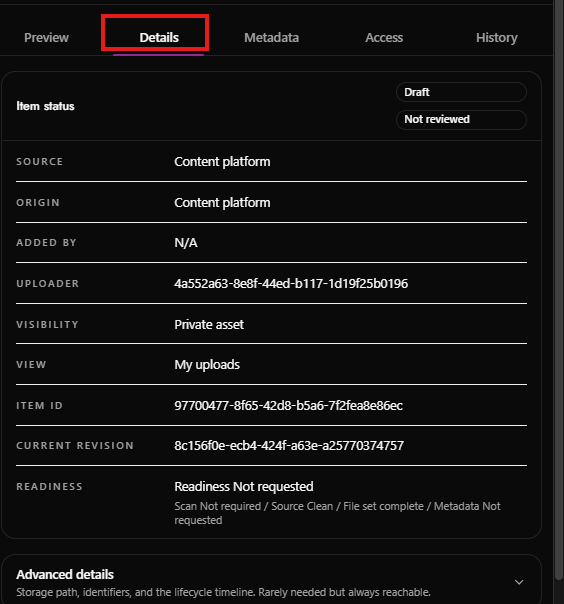
The screen shows the Details tab of a file details page in a dark-themed Content Platform interface.
At the top of the details panel, the item status is displayed with two status pills:
Draft
Not reviewed
These indicate that the item has not yet been published or formally reviewed.
The main details panel lists core system and ownership information for the item.
The readiness detail states: Scan Not required / Source Clean / File set complete / Metadata Not requested
This suggests that the file has passed or bypassed the required scan checks, the file set is complete, and metadata review has not yet been requested.
An Advanced details section appears below the main details panel. It is collapsed by default.
The section description states that it contains storage path, identifiers, and lifecycle timeline information. This section is intended for less frequent use but remains available when more technical information is needed.
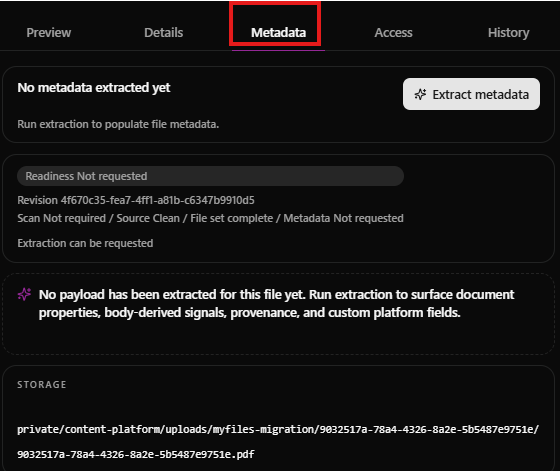
This page shows file information. No metadata extracted yet. That means the system has not yet read the file details.
Click: Extract metadata
to get details like:
File title
Author
Date made
Page count
Keywords
File history
Readiness: Not requested means extraction has not started.
Source Clean means the file looks safe.
Storage shows where the file is saved.
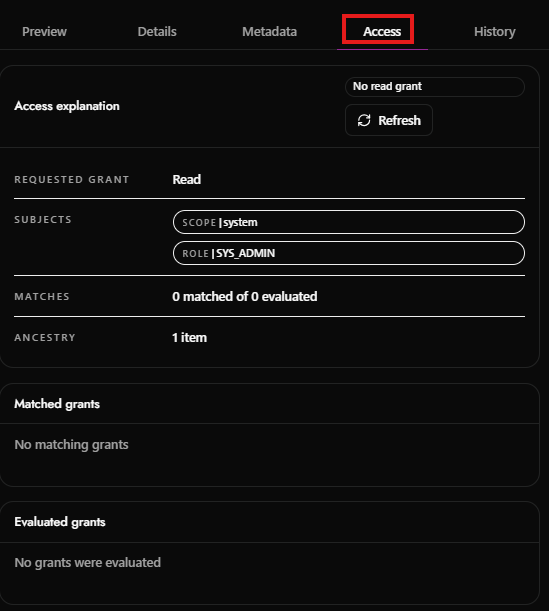
This page shows who can read the file. No read grant. That means no matching permission was found.
The page is checking for: Read access.
It checks access for:
SCOPE | system
ROLE | SYS_ADMIN
0 matched of 0 evaluated. This means no access grants were checked, and none matched.
1 item. This means the file has one parent or related item in its access path.
No matching grants. No permission rule gave access.
No grants were evaluated. No permission rules were found to test.
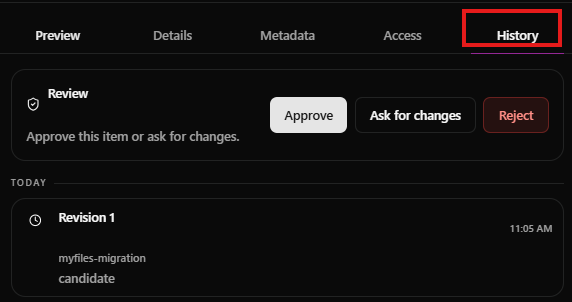
This screen shows the file’s review history.
The review box lets you choose what to do next.
Approve: accept the item
Ask for changes: send it back for edits
Reject: decline the item
Under Today, you can see events for this file.
It shows: Revision 1. This means this is the first saved version of the file.
The event happened at 11:05 AM
The item came from: myfiles-migration
The status is: candidate. This means the file is waiting for review.