To open and view a file:
Find the file in the Personal workspace.
Select the file name.
The file opens in the platform viewer or the appropriate content page.
Alternatively, select the three-dot menu (⋯) next to the file and choose Preview to open the file in the platform viewer.

Once the file is opened, its content is displayed in the platform viewer. The toolbar at the top provides options for viewing, reviewing, sharing, and managing the file.
The available options include:
Discuss in Team Chat: start a discussion about the file in Team Chat
Share: manage access to the file and share it with others
Review and Approval: access available review, approval, and publishing actions
Ask: ask questions about the file using AI
File Info: view detailed information about the file
Download: download the file to your device
Copy link: copy a direct link to the file
More options (⋯): access additional file management actions

Select Discuss in Team Chat from the top toolbar to start a discussion about the file. Once a discussion is created, additional collaboration options become available:
View discussion: opens the associated discussion in Team Chat
Add people with access: add people to the discussion who already have individual access to the file. If no users are available, share the file with them first, then return to add them to the discussion.

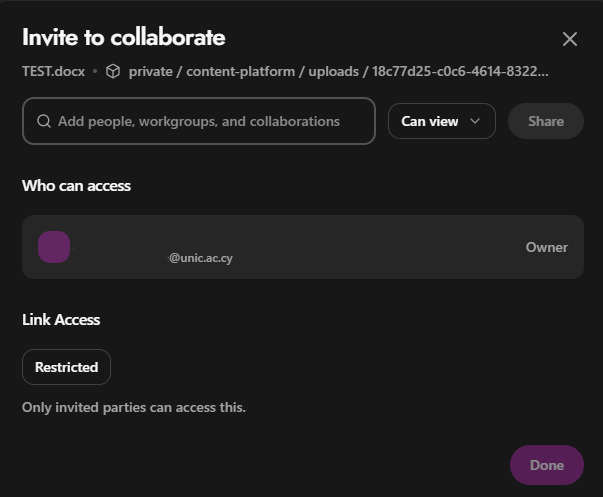
Select Share from the top toolbar to open the Invite to collaborate window.
From here, you can:
Add people, workgroups, or collaborations to share the file with
Set access permissions for the people you invite
View who currently has access to the file
View or manage the file’s Link Access
Select Done when finished
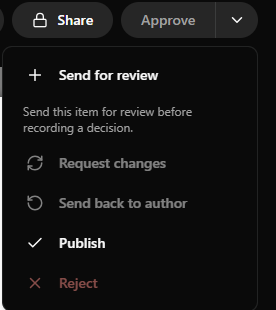
Use the Approve dropdown at the top of the file preview to access the available review and publishing actions.
Available options include:
Send for review: send the item for review before a decision is recorded
Request changes: request changes to the item
Send back to author: return the item to the author
Publish: publish the item
Reject: reject the item
Some options may be unavailable depending on the item's current status or workflow stage.
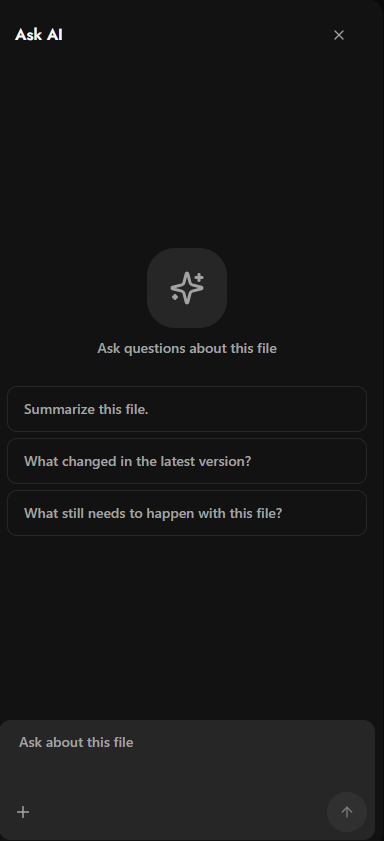
Select Ask from the top toolbar to open the Ask AI panel and ask questions about the current file.
You can:
Select one of the suggested questions to quickly get information about the file
Enter your own question in the Ask about this file field
Ask AI to summarize the file, identify changes, or provide information about its content
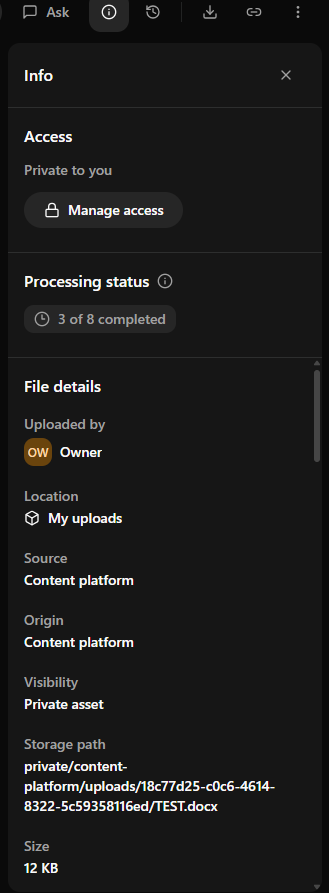
Select the Info icon from the top toolbar to open the Info panel and view detailed information about the file.
The panel includes:
Access: view the file’s visibility and manage access
Processing status: check the progress of file processing
File details: view information such as the owner, location, source, file type, extension, size, and upload or modified dates
Review: view the file’s current review status and review activity
Activity: view information about the file’s activity and latest updates
Metadata: check the status of the file’s metadata and extracted content
Versions: view information about the file’s current and latest revisions
Scroll down the Info panel to view additional details, including review information, activity, metadata, and version history.
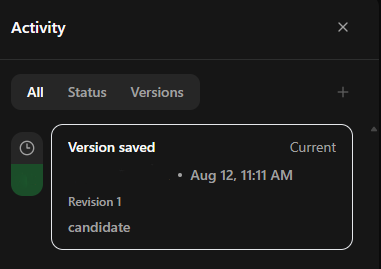
Select the History icon from the top toolbar to open the Activity panel and view the file’s history.
You can:
All: view all recorded activity for the file
Status: view changes related to the file’s status
Versions: view the file’s version history and revisions
The activity entries show information such as the action performed, user, date and time, and relevant version details.
Select the Download icon from the top toolbar to download the current file to your device.
Select the Copy link icon from the top toolbar to copy a direct link to the file.
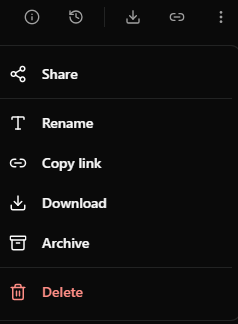
Select the three-dot menu (⋯) from the top toolbar to access additional file actions.
Available options include:
Share: share the file with others
Rename: change the file name
Copy link: copy a direct link to the file
Download: download the file to your device
Archive: move the file to the archive
Delete: permanently remove the file