Please begin by following this Link, which will direct you to the sign-in page for Evolve.

Move your mouse to the top-right corner of the browser window.
Click the three vertical dots highlighted in red.
A dropdown menu will open with browser options.
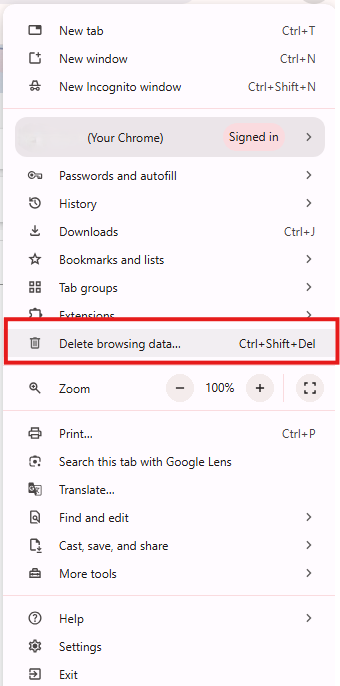
Click Delete browsing data… (highlighted in red).
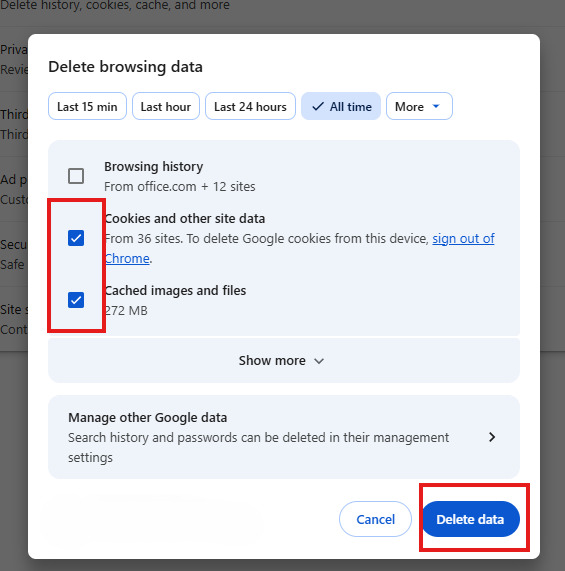
Select the time range at the top.
In the screenshot, All time is selected.
Check the boxes for the data you want to remove.
The highlighted checked boxes are:
Cookies and other site data
Cached images and files
Leave boxes unchecked for anything you do not want deleted.
For example, Browsing history is currently unchecked.
Click the blue Delete data button in the bottom-right corner.
Wait for Chrome to finish clearing the selected data.