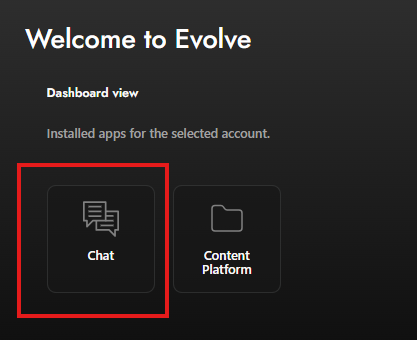
After logging in, navigate to your dashboard. Click on "Chat". If you haven't installed AI Studio yet, you can do so from the App Store.
For guidance on how to install apps, refer to this guide.
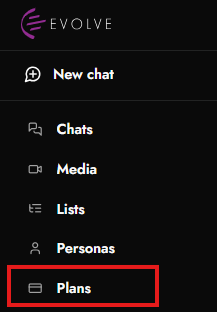
From the AI Studio main screen, navigate to the left sidebar. Click on the "Plans" option in the sidebar to open the Plans section.
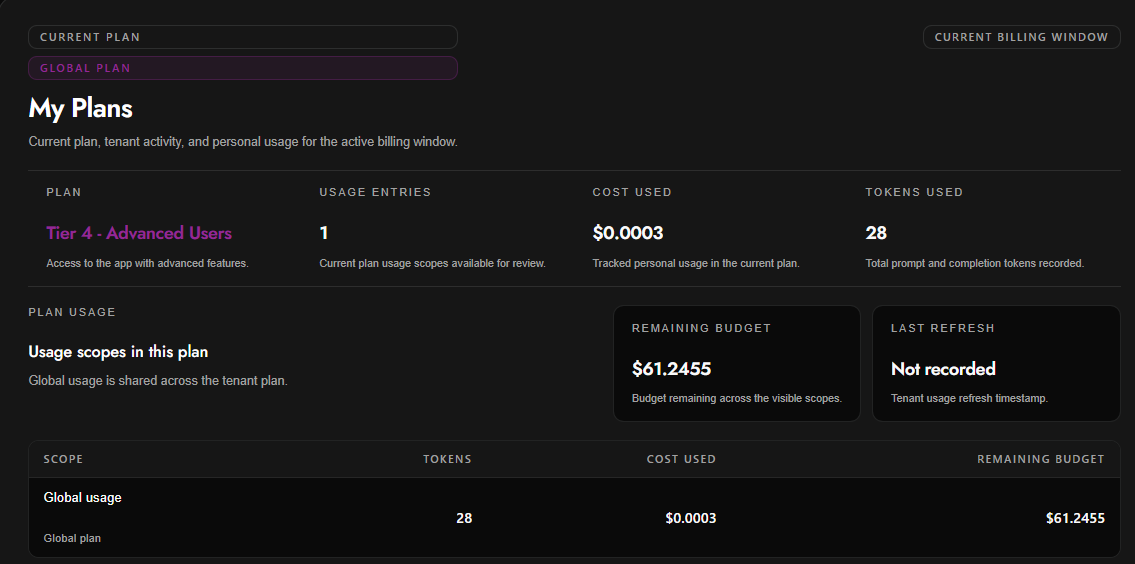
At the top of the page, you can see your active plan.
Plan | The name of your current plan |
Tier 4: Advanced Users | Your active access tier |
Description | A summary of what the plan includes |
This plan provides access to the app with advanced features.
The Usage Entries section shows how many usage records are available for the current billing window.
Usage Entries | 1 |
A usage entry represents recorded activity associated with your plan during the active billing period.
The Cost Used section shows how much of your plan budget has been consumed so far.
Cost Used | $0.0003 |
This amount reflects tracked personal usage in the current plan.
The Tokens Used section shows the total number of prompt and completion tokens recorded.
Tokens Used | 28 |
Tokens are units of text processed by the system. Both user input and system responses may count toward token usage.
The Plan Usage area explains how usage is scoped within the plan.
In this example, usage is shown under Global usage, which means usage is shared across the tenant plan.
The Remaining Budget card shows the amount still available for use across visible scopes.
Remaining Budget | $61.2455 |
This value decreases as additional usage is recorded.
The Last Refresh card shows when tenant usage data was last updated.
Last Refresh | Not recorded |
If this field says Not recorded, the system has not yet stored a tenant usage refresh timestamp.
The table at the bottom summarizes usage by scope.
Scope | The usage category, such as Global usage |
Tokens | Total tokens used in that scope |
Cost Used | Amount spent in that scope |
Remaining Budget | Budget is still available for that scope |
Global usage | 28 | $0.0003 | $61.2455 |
Use the My Plans page to:
Confirm your current plan.
Review how many usage entries are recorded.
Monitor token usage.
Track spending during the current billing window.
Check the remaining available budget.
Verify whether usage data has been refreshed.
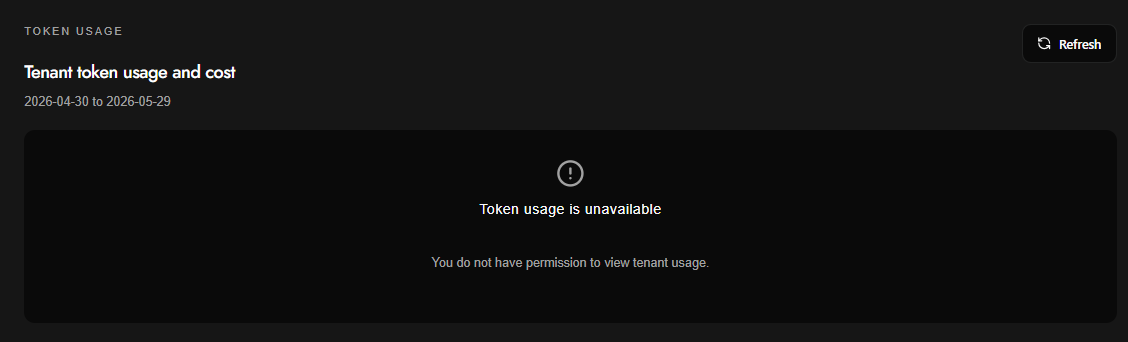
The Token Usage page shows tenant-level token usage and cost for a selected billing or reporting period. If you have the required permissions, this page displays usage totals for the tenant. If you do not have permission, the page shows a message explaining that tenant usage is unavailable.
Tenant token usage and cost | The main report for tenant-level usage and cost |
Date range | The usage period is being shown |
Refresh button | Reloads the latest available usage information |
In the example shown, the date range is: 2026-04-30 to 2026-05-29
This means the page is attempting to show token usage and cost for that reporting period.
To reload the usage report, select Refresh in the upper-right corner of the page.
Use this button when:
You recently changed permissions.
Usage data appears outdated.
You want to check whether newer usage information is available.
An administrator has asked you to reload the page after making access changes.
If you do not have permission to view tenant usage, the page displays the following message: Token usage is unavailable
You may also see this explanation: You do not have permission to view tenant usage.
This means your account does not currently have access to tenant-level token usage and cost data.
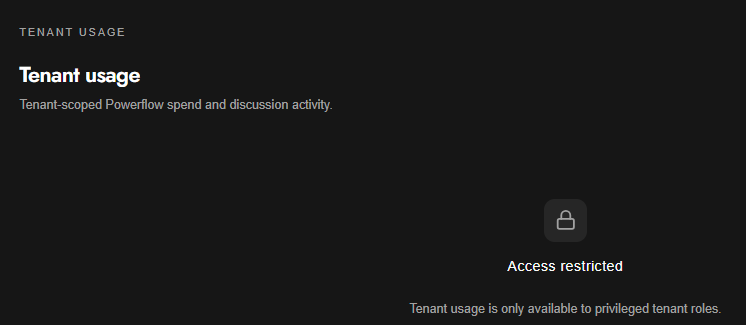
The Tenant Usage page displays tenant-level Powerflow spend and discussion activity. This page is intended for privileged tenant roles, such as administrators or other authorized users.
If your account does not have the required permissions, the page will show an Access restricted message.
The page includes the following information:
Tenant Usage | The name of the page |
Tenant-scoped Powerflow spend and discussion activity | A short description of what the page tracks |
Access restricted | A permission message is shown when the user cannot view the tenant usage |
Lock icon | A visual indicator that the page requires additional access |
The Tenant Usage page is used to review activity and spend across the tenant.
Depending on your role and system configuration, this page may include information such as:
AI Studio usage across the tenant.
Tenant-level spend.
Discussion activity.
Usage patterns by workspace, group, or user.
Administrative reporting data.
If you see the message Access restricted, it means your current account does not have permission to view tenant usage.
The page may also display the following explanation: Tenant usage is only available to privileged tenant roles.
This means access is limited to users with specific tenant-level permissions.