Please begin by following this Link, which will direct you to the sign-in page for Evolve.
If you're unsure how to log in, follow this guide here.
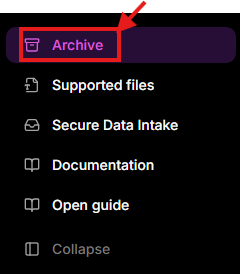
Go to the left-hand navigation menu.
Select Archive.
The Archive page displays files and content that have been archived.
Each archived item displays key information, including its Name, Owner, Status, and Date modified.

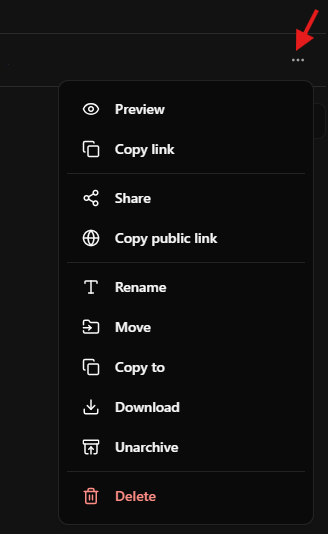
Select the three-dot menu (⋯) next to an archived item to access additional actions.
Available options include:
Preview: open and view the archived item
Copy link: copy a direct link to the item
Share: share the item with others
Copy public link: copy a public link to the item
Rename: change the item name
Move: move the item to another location
Copy to: create a copy in another location
Download: download the item to your device
Unarchive: restore the item from the Archive
Delete: delete the item
How to open a file: please use this guide here.