Please begin by following this Link, which will direct you to the sign-in page for Evolve.
If you're unsure how to log in, follow this guide here.
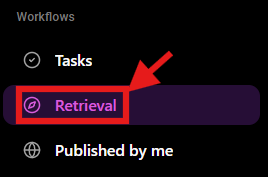
Go to the left navigation menu.
Find the Workflows section.
Click Retrieval.


Use the search bar at the top to find content by:
File name
Folder name
Owner
Tag
You can also use the keyboard shortcut shown in the search field:
⌘ K
On Windows, this may correspond to a similar command shortcut depending on the platform.

The tabs near the upper right summarize different groups of content:
Tab | Count | Meaning |
All | 68 | Shows all available items |
Yours | 63 | Shows items owned by or assigned to you |
Connected | 0 | Shows items connected through sharing or relationships |
Needs review | 0 | Shows items that require review |
Recently added | 62 | Shows recently added items |
The selected tab appears highlighted. In the screenshot, All is selected.

Filters appear below the page title and help narrow the list.
Filter | Current Setting | Purpose |
Type | All types | Filter by file or content type |
Source | All sources | Filter by where the content came from |
Status | All statuses | Filter by review or processing status |
Modified | Pick a date | Filter by modification date |
Use Clear filters to remove all selected filters and return to the default view.

The main table displays the content items.
Column | Purpose |
Checkbox | Select one or more items for bulk actions |
Name | File or folder name |
Access | Visibility or permission level |
Share Type | How the item is shared, if applicable |
Status | Review status |
Updated | Last updated date and time |

The item is not broadly shared. Access may be limited to the owner or authorized users.
The item has not yet gone through a review process.
A dash in the Share Type column means no specific share type is currently listed.
Open the Retrieval page.
Use the All, Yours, Connected, Needs review, or Recently added tabs to choose the content group you want.
Use the search bar if you know the file name, folder name, owner, or tag.
Apply filters such as Type, Source, Status, or Modified to narrow results.
Review the table columns to understand each item’s access, status, and update time.
Select an item using the checkbox if you need to perform an action on it.
Use Clear filters if the list becomes too narrow.