Please begin by following this Link, which will direct you to the sign-in page for Evolve.
If you're unsure how to log in, follow this guide here.
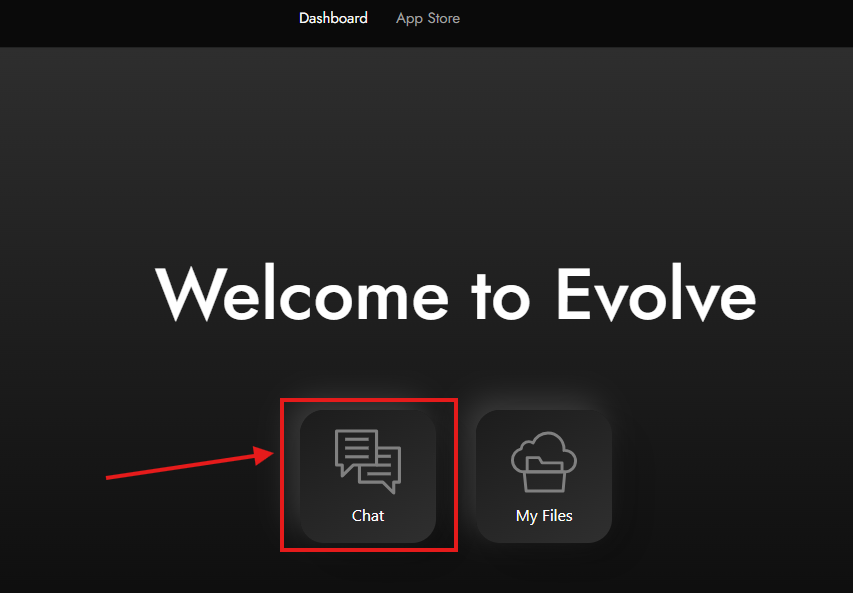
After logging in, navigate to your dashboard. Click on "Chat." If you haven't installed AI Studio yet, you can do so from the App Store.
For guidance on installing apps, refer to this guide.
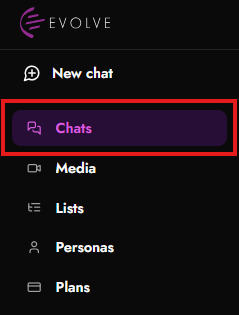
Use Chats to view and reopen your existing conversations.
In the screenshot, Chats is selected, which means you are currently viewing or about to view your chat history.

Regular chats
Use the Search box to find a conversation by title or content.
Example:
Click the Search field.
Type a keyword, such as guide.
Matching chats should appear in the list.

The chat table shows several columns:
Column | Purpose |
Checkbox | Select one or more chats |
Title | The name of the conversation |
Last message | When the chat was last updated |
Status | Whether the chat is complete or still active |
Model | The model used for the chat |
More menu | Extra actions for that chat |

Your visible chats show the status Complete.
This means the conversation has finished processing and can be opened or managed.

On the upper right, you have controls for:
Live Update: Automatically refreshes the chat list when enabled.
Status: Filter chats by status.
Model: Filter chats by model.
Last message: Sort chats by most recent or oldest activity.

To open a conversation:
Find the chat in the list.
Click the chat title, such as Guide.
The conversation should open.
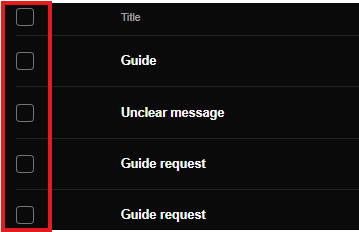
To select chats:
Click the checkbox beside a chat.
Use the top checkbox to select multiple chats.
Use any available actions from the menu if shown.
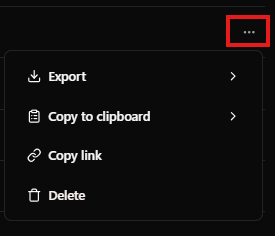
Each chat row has a three-dot menu on the far right.
Use it for additional actions, which may include options such as:
Rename
Delete
Archive
Copy link
View details