Please begin by following this Link, which will direct you to the sign-in page for Evolve.
If you're unsure how to log in, follow this guide here.
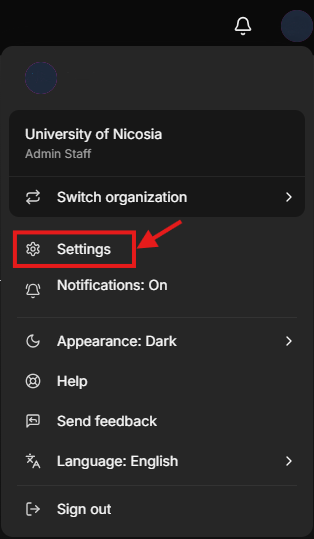
While logged in to your account, look for the profile icon in the top right corner of the page. Click on the profile icon to access your account settings. In the drop-down menu that appears after clicking on your profile icon, locate and click on the option labelled "Settings". This will take you to the section where you can manage your account settings. After that, you should select “Sign In & Security“.
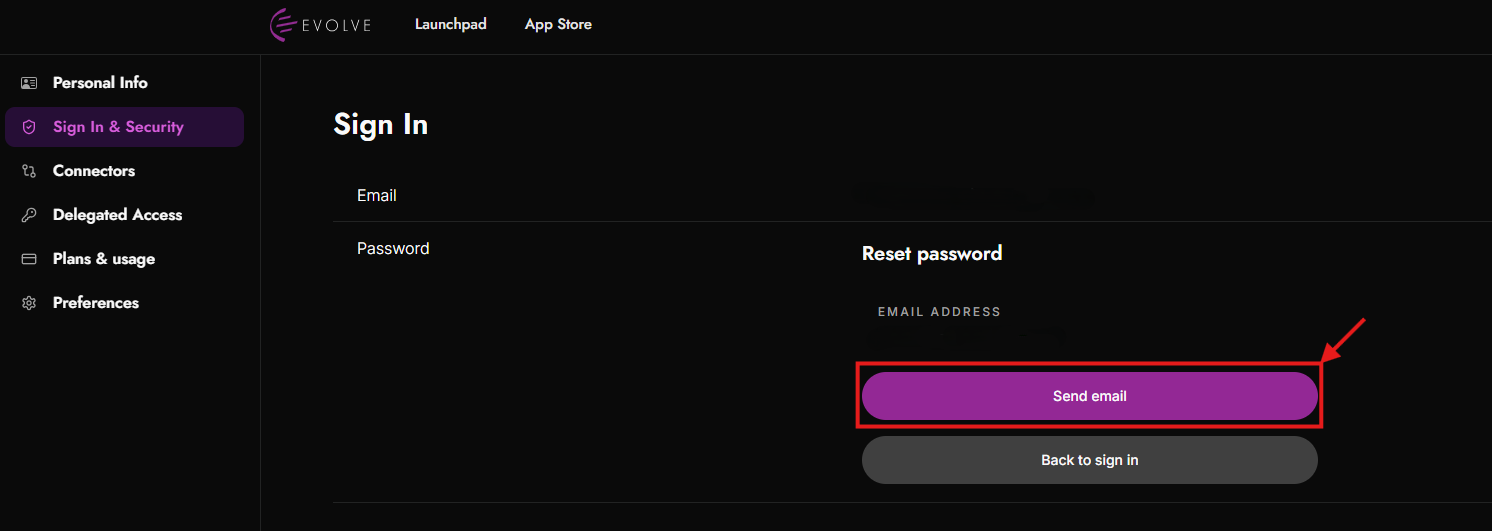
In the “Sign In & Security” section, you can view the email address associated with your account. The same email address is displayed in the Reset password section. To reset your password, click “Send email” and follow the instructions sent to your email address.
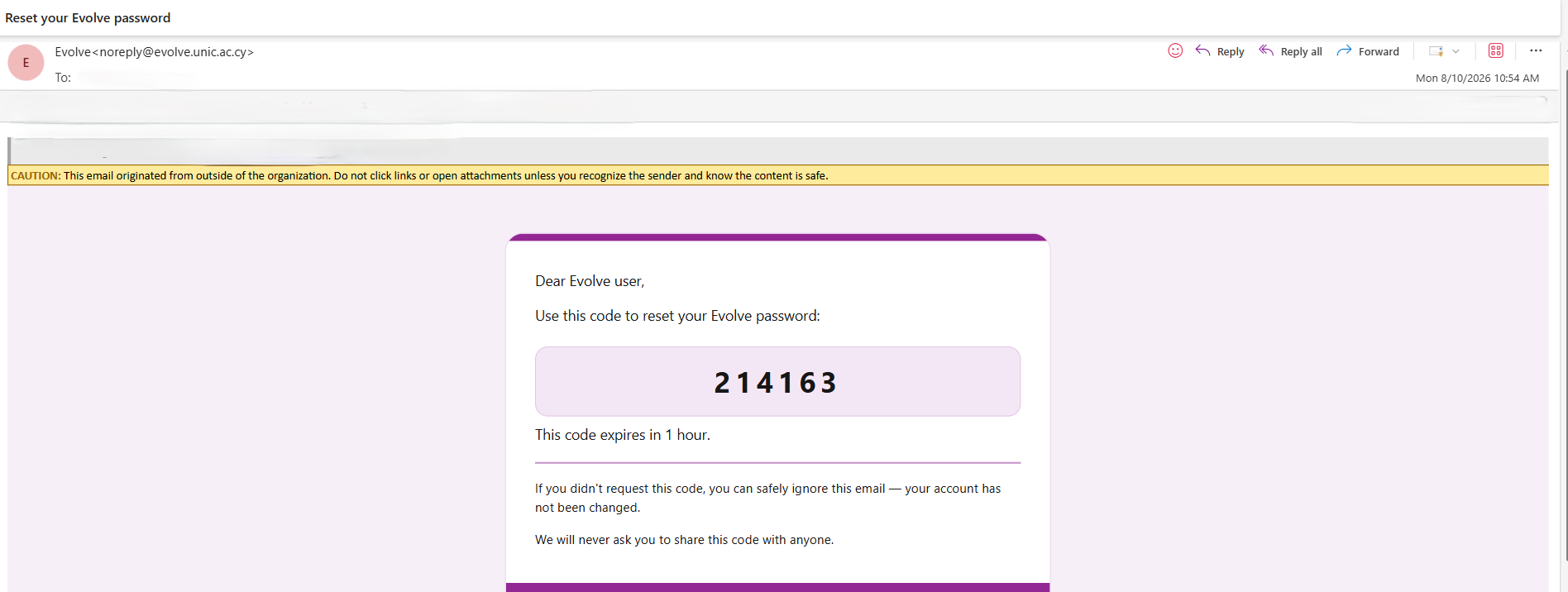
Meanwhile, the verification code will be sent via email.
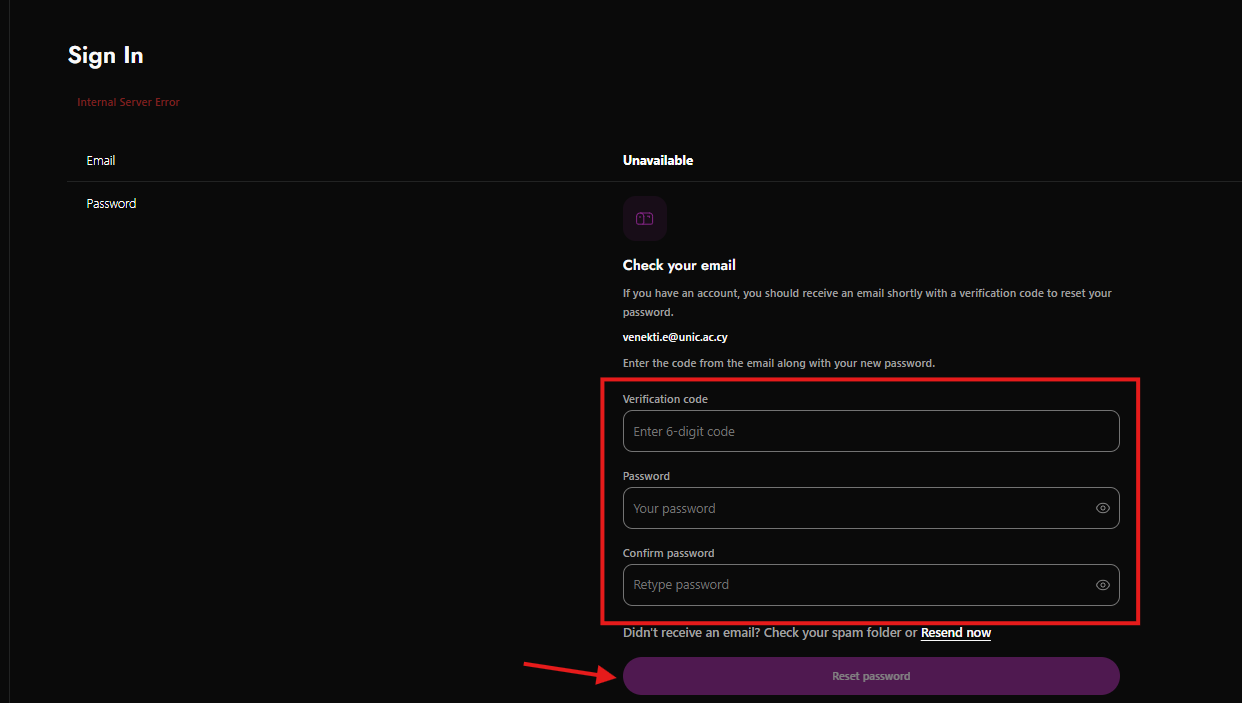
A form is presented for completing the password reset process. This form includes:
A Verification Code field for entering a 6-digit code received via email
A Password field for the new password
A Confirm Password field to re-enter the new password
Additional guidance is provided beneath the form, allowing users to check their spam folder or request a new email via the “Resend now” option.
At the bottom, a prominent “Reset password” button allows the user to submit the form and complete the password reset process.