Please begin by following this Link, which will direct you to the sign-in page for Evolve.
If you're unsure how to log in, follow this guide here.
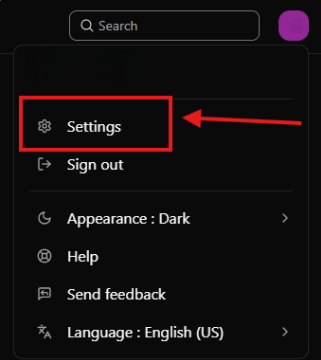
While logged in, click on your profile icon on the top right corner of the screen and click on "Settings" from the dropdown menu, as depicted in the image above.
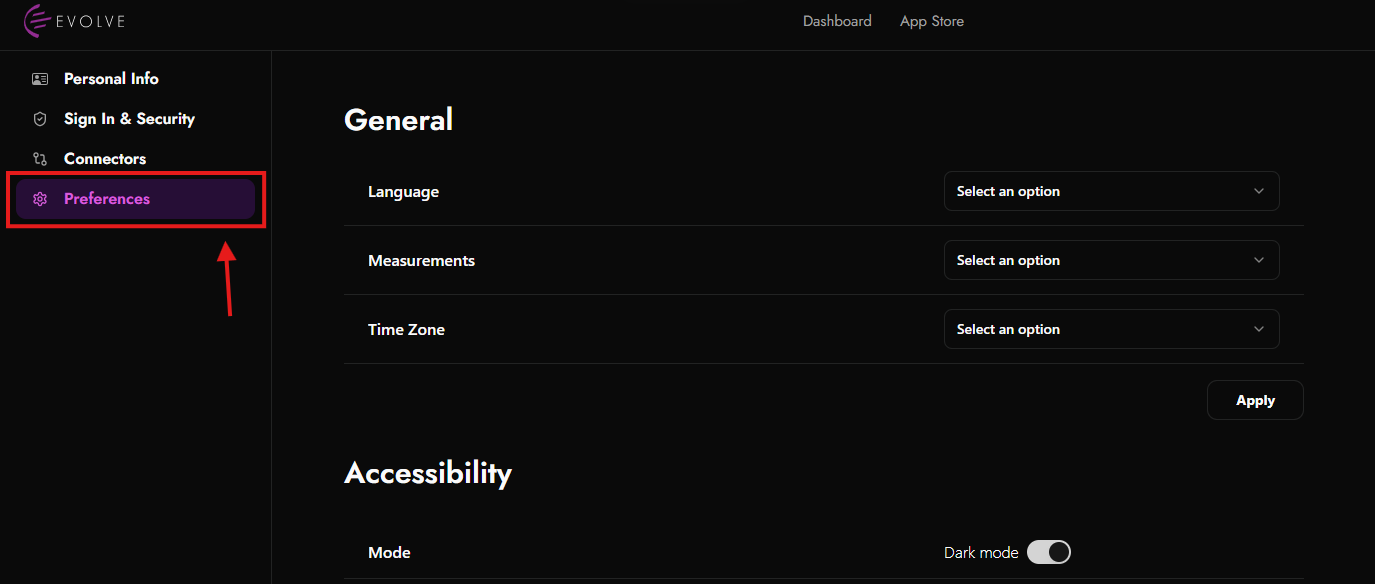
Then, click on "Preferences" from the left side menu, as depicted in the image above.

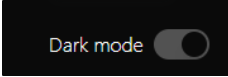
Scroll down to the "Accessibility" section, as depicted in the image above, and toggle the switch to change between Light and Dark mode.
Light Mode: Toggle the switch to the left:

Dark Mode: Toggle the switch to the right:
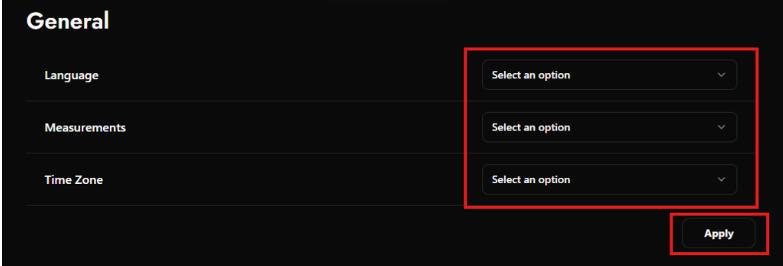
In the "General" section, locate the "Language" dropdown menu. Click on the dropdown menu to view the available languages and select your preferred language from the list (Example: English, Bulgarian).
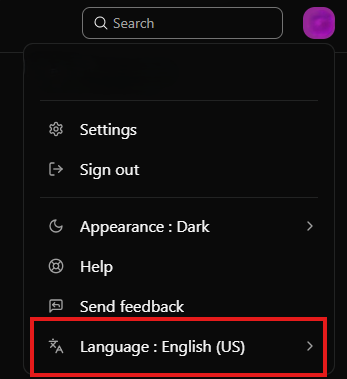
You can also change the language from the side menu on the top right side of the screen, where you click on your profile icon, as depicted in the image below:
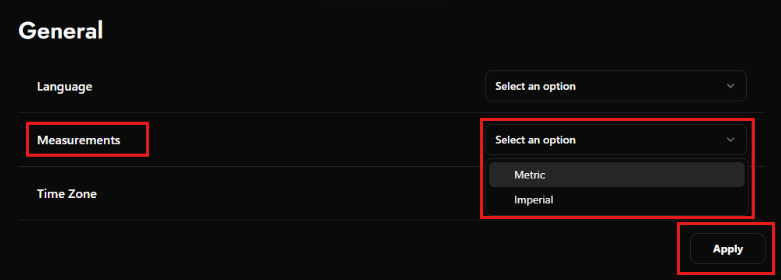
In the "General" section, locate the "Measurements" dropdown menu. Click on the dropdown menu to view the available measurement units and select your preferred measurement unit from the list (Example: Metric, Imperial).
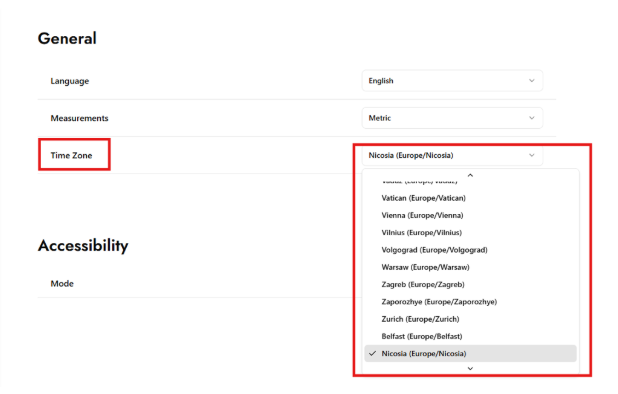
In the "General" section, locate the "Time Zone" dropdown menu. Click on the dropdown menu to view the available time zones and select your preferred time zone from the list (Example: Europe/Athens, Australia/Perth).
Applying Changes
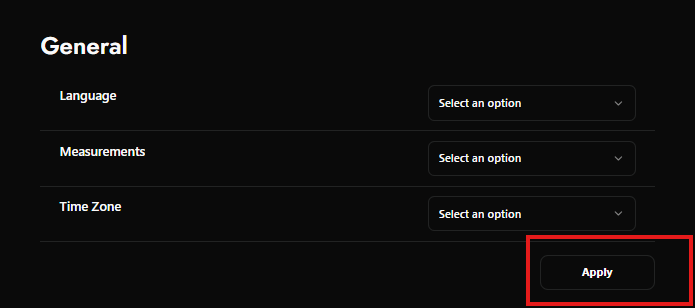
After making all desired changes, click the "Apply" button to save your preferences as depicted in the image above.
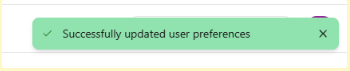
If you click the “Apply” button, you will get this notification in the bottom right corner of your screen: