Please begin by following this Link, which will direct you to the sign-in page for Evolve.
If you're unsure how to log in, follow this guide here.
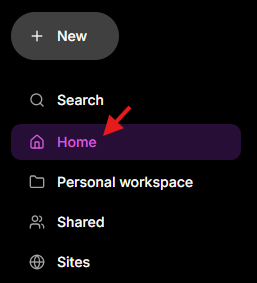
The Home option is located in the left-hand navigation menu and is highlighted in purple when selected. Click Home to access an overview of your recent content, workspaces, and activity.
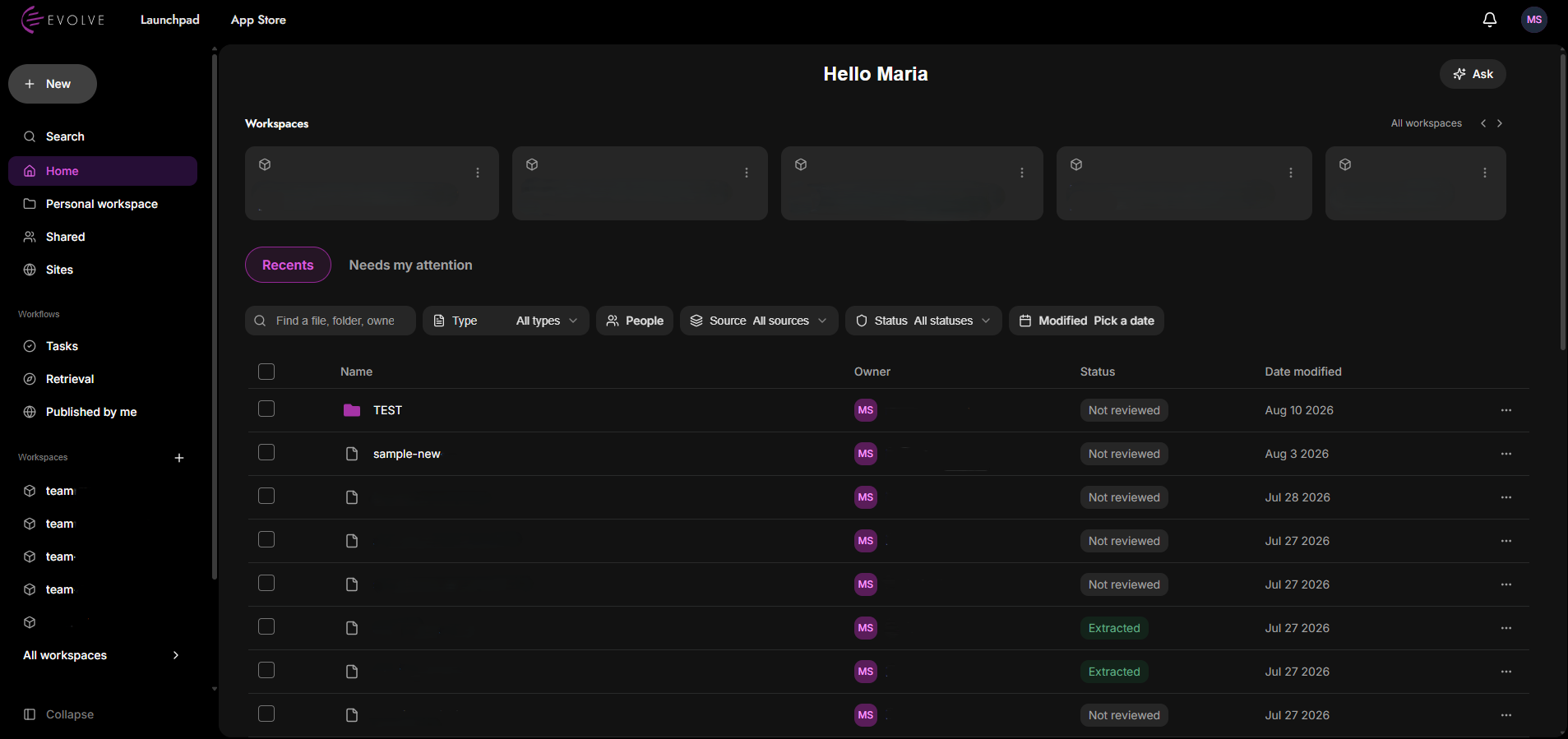
It provides an overview of your workspaces and recent content, with options to switch between Recents and Needs my attention. You can search and filter content by type, people, source, status, or modified date.
The content list provides key information for each item, including its Name, Owner, Status, and Date modified, making it easy to view the main details at a glance.
Click the three-dot menu (⋯) next to a file or folder to access additional management options.
For a file, the available options include Preview, Share, Rename, Move, Copy to, Copy link, Download, Archive, and Delete.
For a folder, the available options include Open folder, Share, Rename, Move, Copy to, Copy link, Download, Archive, and Delete. Some options may appear unavailable depending on the folder or its current state.
The Ask button is located in the upper-right corner of the Home page. Select it to ask questions across your content and workspaces using the AI assistant.
Use the search bar under “Recents” to quickly find a specific file, folder, or owner.
You can search by:
File name
Folder name
Owner
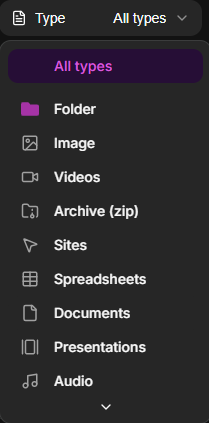
Use the Type filter to narrow down the content displayed on the Home page based on the selected file or content type. By default, All types are displayed.
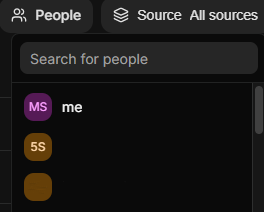
Use the People filter to narrow down the content displayed on the Home page based on the owner. You can search for and select a specific person to view their associated content.
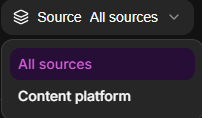
Use the Source filter to narrow down the content displayed on the Home page based on its source. By default, content from All sources is displayed.
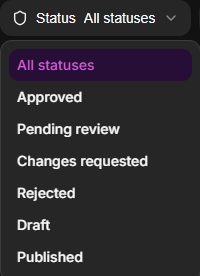
Use the Status filter to narrow down the content displayed on the Home page based on its current status. By default, content with All statuses is displayed.
The available status options are:
All statuses
Approved
Pending review
Changes requested
Rejected
Draft
Published
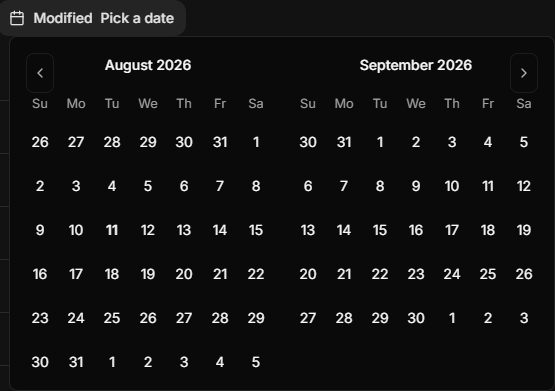
Use the Modified filter to narrow down the content displayed on the Home page based on its date modified. Select a date from the calendar to filter the displayed items.
The calendar includes:
A left arrow to move to the previous month.
A right arrow to move to the next month.
Weekday labels from Sunday to Saturday.
A date grid for each month, including dates from the previous and following months where applicable.
Each row has a checkbox on the left.
Use the checkbox to select one or more items. Once selected, you can perform actions such as Download, Move, Copy to, Delete, and Make a copy, with additional options available through the three-dot menu (⋯).Open a file
How to open a file: please use this guide here.