Please begin by following this Link, which will direct you to the sign-in page for Evolve.
If you're unsure how to log in, follow this guide here.
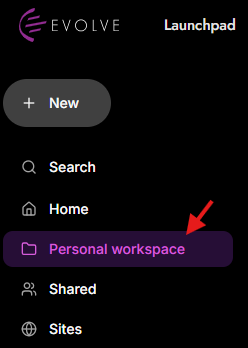
In the left-hand navigation menu, go to the Personal workspace section.
Select Personal workspace.
Your personal files and folders will appear in the main workspace.
Use the search bar at the top:
You can search by:
File name
Folder name
Owner

Use the filter row near the top of the page.
Available filters include:
Type: filter by file or content type
Source: filter by where the content came from
Status: filter by its current status
Modified: select a date to filter by when the content was modified

To open an uploaded file:
Find the file in the list.
Click the file name.
Its details show:
Name
Owner
Status
Date modified

Use the checkbox on the left side of a file row to select it.
You can also use the checkbox at the top of the table to select items in the current list.

At the upper right of the table, you can see: Showing 1-25 of 51
Use:
Prev: go to the previous page
Next: go to the next page
How to open a file: please use this guide here.