Please begin by following this Link, which will direct you to the sign-in page for Evolve.
If you're unsure how to log in, follow this guide here.
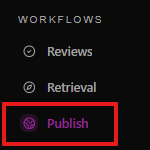
In the left sidebar, go to the Content section.
Select Publish.
Your archive files will appear in the main workspace.
Main Areas
Use the search bar at the top to find content by:
File name
Folder name
Owner
Tag
The shortcut shown is:
text
Copy Code
⌘ K
On Windows, the equivalent shortcut may vary by application.

The tabs near the upper right summarize publishable content groups:
Tab | Meaning |
All | Shows all matching publish items |
Yours | Shows items owned by or assigned to you |
Connected | Shows connected or shared items |
Needs review | Shows items requiring review before publishing |
Recently added | Shows recently added publish items |

The filter row controls what appears in the table.
Filter | Current Setting | Purpose |
Type | All types | Filters by file or folder type |
Source | All sources | Filters by where the content came from |
Status | Approved | Shows only approved content |
Modified | Pick a date | Filters by last modified date |

The table is where publishable files or folders would appear.
Column | Purpose |
Checkbox | Select one or more items for actions |
Name | File or folder name |
Access | Visibility or permission level |
Share Type | Sharing configuration |
Status | Review or approval status |
Updated | Last update date and time |
Open the Publish page.
Check the filter row to confirm the selected criteria.
If you expected to see content, click Clear filters.
Use the search bar to look for a specific file, folder, owner, or tag.
Check other tabs such as Yours, Connected, or Recently added.
If no items appear, confirm that content has been uploaded and approved.
Once content appears, select it using the checkbox to take available publishing actions.